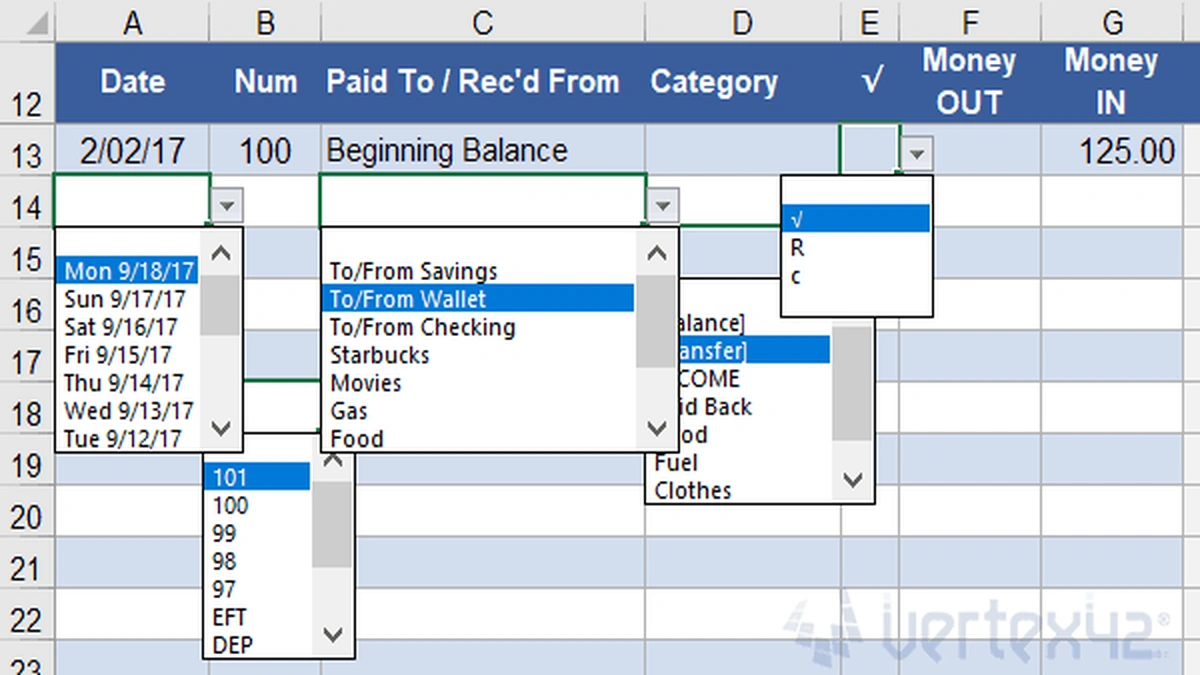
i have worked with Excel for years, and one feature I constantly return to is the drop down list. it looks simple on the surface, yet it can completely change how a spreadsheet behaves. a well-built drop down list reduces errors, speeds up data entry, and makes your workbook feel professional instead of fragile. in this guide, i will walk through every practical method how to create a drop down list in Excel, starting from the basics and moving into advanced, real-world techniques that people actually use at work.
Understanding What a Drop Down List Is in Excel
a drop down list in Excel is created using Data Validation. it limits what a user can enter into a cell by offering predefined choices. instead of typing freely, the user selects from a small menu that appears when the cell is clicked.
this is especially useful when
you want consistent data like status names, departments, product categories, or yes and no values
multiple people edit the same file
you plan to analyze or filter data later
drop down lists are not just about convenience. they protect your data from mistakes and keep everything structured.
Why Drop Down Lists Matter in Real Spreadsheets
i have seen many spreadsheets fail simply because people typed values differently. one person types Approved, another types approved, someone else types Approve. Excel treats all of these as different values.
drop down lists solve this problem by forcing consistency.
key benefits include
fewer typing errors
cleaner reports and charts
easier sorting and filtering
better collaboration
once you start using drop down lists, you rarely go back to free text entry.
Preparing Your Data Before how to Create a Drop Down List in excel
before creating a drop down list, i always recommend thinking about where your list items will come from. Excel allows you to type values directly or reference them from cells.
common sources include
a short list like Yes and No
a column of values on the same sheet
a list stored on a separate hidden sheet
planning this first makes the setup smoother and avoids rework later.
Method 1 Creating a Simple Drop Down List Using Typed Values
this is the fastest method and perfect for beginners or very small lists.
Step by Step Process
- select the cell where you want the drop down list
- go to the Data tab
- click Data Validation
- under Allow, choose List
- in the Source box, type your values separated by commas
- click OK
example
Yes,No,Maybe
now the selected cell shows a small arrow that opens the drop down menu.
When to Use This Method
i use this approach when
the list is very short
the values will never change
speed matters more than flexibility
for anything dynamic or reusable, another method works better.
Method 2 Creating a Drop Down List from Cell Values
this is the most common and practical technique.
Setting Up the Source List
- type your list items into a column, for example A1 to A5
- select the target cell
- open Data Validation
- choose List
- click inside the Source box
- select the range containing your list
- click OK
now the drop down pulls values directly from those cells.
Why This Method Is Powerful
i prefer this method because
you can change the list later without editing validation rules
it works well for long lists
it keeps logic separate from data entry
many professional spreadsheets rely on this exact setup.
Method 3 Creating a Drop Down List Using Named Ranges
named ranges make your drop down lists easier to manage and read.
How to Create a Named Range
- select the list of values
- click in the Name Box above the grid
- type a name like StatusList
- press Enter
Using the Named Range in Data Validation
- select the target cell
- open Data Validation
- choose List
- in Source, type
=StatusList - click OK
Advantages of Named Ranges
i rely on named ranges when
building large workbooks
sharing files with others
maintaining long-term spreadsheets
they make formulas clearer and reduce mistakes.
Method 4 Creating a Drop Down List from Another Sheet
often, i store drop down values on a separate sheet to keep things tidy.
Steps to Follow
- place your list on another worksheet
- create a named range for that list
- apply Data Validation using the named range
Excel does not allow direct references to another sheet without a named range, so this step is essential.
Pro Tip
i usually hide the sheet containing the list. this keeps users focused and prevents accidental edits.
Method 5 Creating a Dependent Drop Down List
dependent drop down lists change based on another selection. this is extremely useful for categories and subcategories.
example
first drop down selects Country
second drop down shows cities from that country
Basic Concept
this method uses
multiple named ranges
the INDIRECT function
each main category has its own named range.
When to Use Dependent Lists
i use them when
data has a clear hierarchy
user choices should be guided step by step
complex forms need to stay simple
they take more setup but deliver a better user experience.
Method 6 Creating a Dynamic Drop Down List That Expands Automatically
static lists break when new values are added. dynamic lists solve this.
Using Excel Tables
- select your list values
- press Ctrl plus T to create a table
- use the table column as your list source
as you add new rows, the drop down updates automatically.
Why This Matters
i almost always use tables because
they scale with your data
they reduce maintenance
they prevent broken validation rules
this is one of the most underrated Excel techniques.
Customizing Drop Down List Behavior
Excel allows several useful custom settings.
Input Message
you can display a helpful message when a cell is selected.
example
Please choose a department from the list
this guides users before they make a choice.
Error Alert
you can control what happens if someone types an invalid value
stop the entry completely
show a warning
or allow it with information
i recommend Stop for critical data fields.
Formatting Cells with how to create a Drop Down List in excel
a drop down list does not change formatting by itself. however, you can combine it with conditional formatting.
example
if Status equals Approved, turn the cell green
if Status equals Rejected, turn it red
this makes dashboards and trackers far more readable.
Common Problems and How to Fix Them
Drop Down Arrow Not Showing
this usually happens when
the cell is protected
Data Validation is not applied correctly
recheck the validation settings.
List Values Not Updating
this occurs with static ranges. switch to tables or dynamic named ranges.
Users Can Still Type Values
set Error Alert style to Stop instead of Warning.
Best Practices I Always Follow
over time, i have developed a few habits that prevent issues.
keep lists separate from data entry
use named ranges for clarity
hide source sheets if needed
document complex validation rules
test drop downs before sharing files
these small steps save hours later.
Real World Examples of Drop Down Lists
drop down lists are everywhere in Excel.
project status trackers
employee forms
inventory management
budget categories
survey responses
once you recognize them, you will see how essential they are.
conclusion
i have built countless spreadsheets, and creating drop down lists in Excel remains one of the most impactful skills you can learn. it improves accuracy, usability, and trust in your data. whether you start with a simple Yes and No list or build advanced dependent menus, the principles stay the same. once you master these techniques, your Excel files stop feeling like plain grids and start working like structured systems designed for real people.
Frequently Asked Questions
1. Can I Create a Drop Down List in Excel Online?
yes, Excel Online supports basic drop down lists using Data Validation, though advanced features may be limited.
2. Can I Copy a Drop Down List to Other Cells?
yes, simply copy and paste the cell. the validation rules move with it.
3. Can I Allow Multiple Selections in a Drop Down List?
not natively. this requires VBA, which goes beyond standard Excel features.
4.Can I Remove a Drop Down List?
yes. select the cell, open Data Validation, and click Clear All.
5. Do Drop Down Lists Affect File Performance?
no. even large workbooks with many drop downs perform well when designed properly.