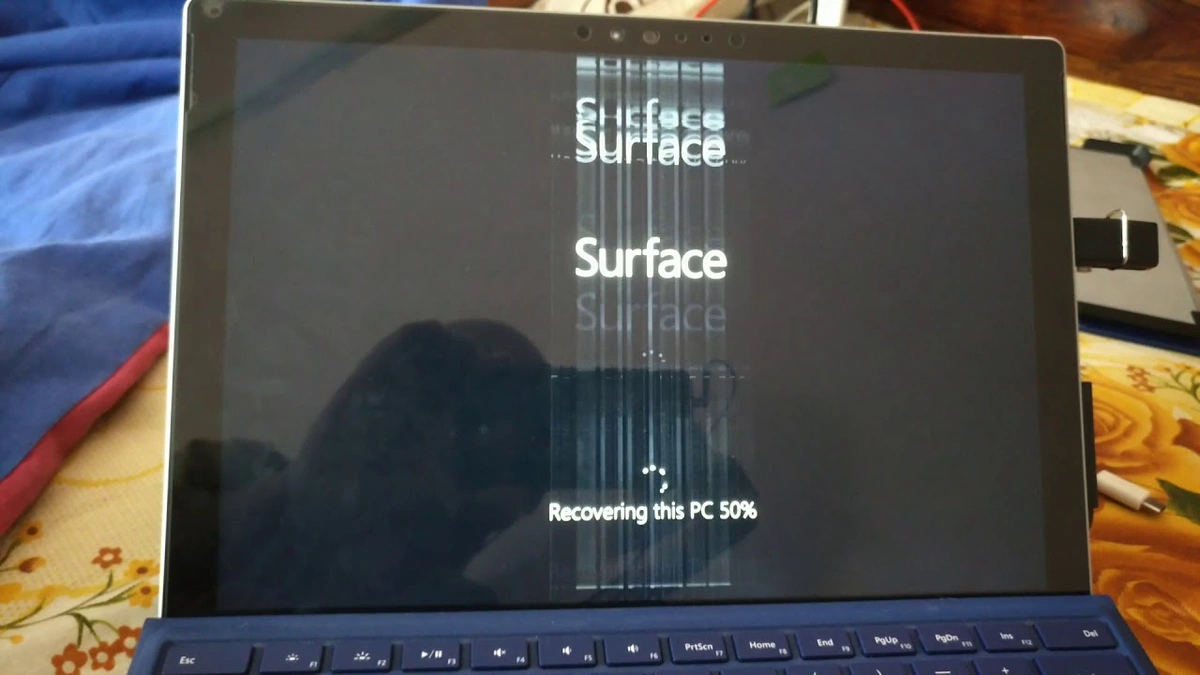
i have a soft spot for the Surface Pro 4 Screen Ghosting because it still feels like a clever machine: thin, fast enough for real work, and built around a display that was ahead of its time. That is exactly why screen ghosting feels so frustrating when it shows up. One day you notice faint “shadows” of old windows, keyboard outlines, or app menus lingering on the screen. Sometimes the image retention fades after a few minutes. Other times it stacks up until the screen looks dirty, smeared, or permanently burned in. People often lump this problem together with the Surface Pro 4’s famous “flicker” or “scramble” issue, but ghosting can be a different symptom with different triggers.
In this guide, i will break down what Surface Pro 4 screen ghosting actually is, why it happens, and how to separate a software glitch from a hardware defect. You will get practical tests you can run in minutes, safe fixes worth trying, and clear decision points for repair or replacement. I will also cover Microsoft’s official guidance for Surface display problems and the Surface Pro 4 flicker/scramble program that applied to eligible devices for up to three years from purchase, because ghosting complaints often travel alongside those known panel failures.
What “Screen Ghosting” Means on a Surface Pro 4
Screen ghosting is when a previous image seems to linger as a faint afterimage even after the content changes. On a Surface Pro 4, users typically describe:
- A pale outline of a browser tab bar after switching apps
- Faint boxes where a bright window used to be
- Keyboard or taskbar “shadows” on light backgrounds
- Smearing trails when scrolling text
Ghosting is often confused with other display issues. Here is the quick separation:
Ghosting vs image retention vs burn-in
- Ghosting (motion blur or trailing): More noticeable while scrolling or moving content. Often tied to pixel response behavior, panel aging, or settings.
- Image retention (temporary): A static image leaves a faint imprint that fades over time. Heat can make it worse.
- Burn-in (permanent): Long-term damage where the imprint does not fade. Less common on LCD than on OLED, but severe retention over long periods can become persistent on some LCD panels.
Ghosting vs the Surface Pro 4 “flicker” or “scramble”
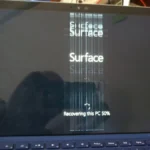
The Surface Pro 4 became well known for a separate defect where the display flickers, shakes, or looks scrambled, often after warming up. Microsoft published an official page for this symptom and advised using UEFI to confirm whether the scrambling appears outside Windows, which helps distinguish hardware from software causes.
Ghosting can appear alone, but many owners see ghosting and flicker together because heat and panel degradation can trigger multiple visible problems.
Why Surface Pro 4 Ghosting Happens
There is rarely a single cause. Ghosting on the Surface Pro 4 usually comes from one of these buckets:
Heat stress and panel behavior
Heat is a repeating theme in Surface Pro 4 display complaints. When the device warms up, the LCD’s response can change, and faint afterimages can become more obvious. Many user reports link ghosting or visual artifacts to overheating or long sessions, and Microsoft community replies often start by recommending a full shutdown or reset process to clear software state and reduce abnormal behavior.
Aging LCD panel or display assembly
The Surface Pro 4 is old enough now that panel wear is real. Adhesives, backlight layers, and panel electronics can degrade. If ghosting gets worse over months, shows up quickly after boot, or appears even before Windows loads, that points away from a simple driver issue.
Display firmware, Intel graphics driver, or Windows settings
Drivers and settings rarely create true image retention, but they can influence refresh behavior, power saving, and how the GPU outputs frames. Microsoft’s general Surface display troubleshooting recommends Windows updates and driver or firmware updates, and Microsoft also provides Surface driver and firmware bundles for manual installation when troubleshooting.
Brightness and static UI patterns
High brightness plus static UI elements (taskbar, browser chrome, editing toolbars) can make retention more noticeable. If your workflow includes long periods with the same bright interface, you may see faint afterimages more often.
A Fast Symptom Checklist (So You Diagnose the Right Problem)
Before you try fixes, it helps to label what you are seeing. Use this table as a quick guide.
| What you see | Most likely category | Common trigger | What it suggests |
|---|---|---|---|
| Faint outline of a window that fades after minutes | Temporary image retention | Heat + static image + high brightness | Panel stress, sometimes manageable |
| Trails while scrolling text | Motion ghosting | Panel response + settings | Sometimes reduced by refresh and power settings |
| Screen shakes, flickers, or looks “scrambled” | Flicker/scramble defect | Heat, panel failure | Often hardware, confirm in UEFI |
| The issue appears on external monitor too | GPU or software | Driver, Windows | Less likely the internal panel |
| The issue appears in UEFI | Hardware | Panel, connector | Strong hardware indicator |
Step 1: Do Two Tests That Separate Software From Hardware
These two checks save a lot of wasted time.
Test A: Check in UEFI (the most important divider)
Microsoft’s Surface Pro 4 flicker/scramble guidance is built around a simple idea: if you see the problem in UEFI, Windows drivers are not the cause. The official steps tell you to shut down, then boot to UEFI by holding Volume Up and pressing Power, and observe whether the issue appears there.
How to use this for ghosting:
- If you see ghosting-like artifacts, severe discoloration, or unstable visuals even in UEFI screens, treat it as hardware.
- If the UEFI screen looks clean, your odds improve that Windows settings, drivers, or heat management could reduce the issue.
Test B: Use an external monitor
Connect a monitor via Mini DisplayPort. Then mirror the display and look for the same artifacts.
- If the external monitor looks perfect while the Surface screen shows ghosting: likely the internal panel or assembly.
- If both show similar weirdness: suspect GPU/driver/software issues, though true “image retention” is still usually panel-related.
Step 2: Safe Fixes Worth Trying First
If your quick tests do not scream “hardware,” start here. These are low risk and often help.
Fully shut down and do a two-button reset
Surface devices can carry driver state through modern sleep modes. A hard shutdown can clear weird display states. Microsoft community guidance commonly recommends a two-button shutdown process or reset-style steps for Surface display issues.
Simple version:
- Shut down from Windows.
- Hold Power for about 30 seconds to force off.
- Boot normally.
If ghosting was caused by a stuck display mode, this sometimes helps.
Update Windows, then install the latest Surface drivers and firmware bundle
Microsoft explicitly recommends keeping the device updated and provides driver and firmware packages for Surface models. If Windows Update is not enough or you want a clean manual install, use Microsoft’s Surface driver and firmware download page to get the correct bundle for Surface Pro 4.
This is not a magic fix for hardware retention, but it can improve stability and reduce flicker-like behavior that makes ghosting feel worse.
Turn off automatic brightness and power-saving display behaviors
Adaptive brightness and aggressive power savings can change how the display behaves across lighting conditions. Microsoft’s general Surface display troubleshooting includes adjusting display behaviors as part of the process.
Try:
- Disable automatic brightness
- Keep brightness at a moderate level instead of max
- Use a balanced power plan and avoid extreme battery saver settings while testing
Reduce heat (the most practical improvement for many users)
Because heat is so often involved, managing temperature is not a gimmick, it is real troubleshooting.
Try these practical steps:
- Remove the Type Cover temporarily to improve airflow around the lower edge
- Use the Surface on a hard surface, not a bed or sofa
- Avoid charging while running heavy workloads during testing (charging adds heat)
- Close high CPU apps and browser tab overload
- If you have a small desk fan, point it at the back during heavy use
Some owners report that simply cooling the device reduces flicker and visual artifacts, though hacks like putting the device in a freezer are widely discouraged because moisture and thermal shock can cause damage.
Step 3: Targeted Adjustments That Sometimes Reduce Ghosting
These are more “tuning” than “repair,” but they can improve daily usability.
Change refresh behavior (when available)
Many guides for Surface Pro flicker suggest experimenting with refresh-related settings. While that advice is more common for flicker than retention, it can reduce perceived trailing in some cases. Recent troubleshooting guides still highlight refresh rate adjustments as a first step for flicker-like symptoms.
On older hardware and Windows builds, your options may be limited, but it is worth checking advanced display settings and Intel graphics options where available.
Reduce static high-contrast UI time
If your ghosting looks like image retention, treat your workflow like you are preventing it:
- Use auto-hide taskbar
- Enable a moving screensaver
- Lower brightness slightly
- Switch to dark mode if your afterimages are mostly bright UI blocks
- Avoid leaving a bright static window up for hours
These do not “fix” a failing panel, but they can slow down how quickly the afterimage becomes noticeable.
Quick “afterimage fade” routine
If you have temporary retention, you can often fade it faster by:
- Showing a full-screen video with lots of motion
- Cycling solid colors full screen for a few minutes
- Letting the device cool while the screen is off
This is not a permanent solution, but it can restore readability for a work session.
When Ghosting Is Really a Hardware Problem
If any of the following is true, software fixes are unlikely to solve it:
The issue shows in UEFI
Microsoft’s own diagnostic logic for the Surface Pro 4 scramble symptom treats UEFI appearance as confirmation the problem is not Windows.
The same idea applies here: if artifacts appear before Windows loads, drivers are not your main cause.
The issue worsens with heat and time, then becomes frequent
This pattern is common in Surface Pro 4 panel failures. Devices often start fine when cold, then degrade after 10 to 30 minutes.
You see flicker or scramble alongside ghosting
Microsoft determined that a subset of Surface Pro 4 devices had flicker that could not be addressed with firmware or driver updates and launched a replacement program for eligible devices.
If your unit is in that family of failures, ghosting may be part of a broader panel problem.
Microsoft’s Replacement Program Context and What It Means Today
In 2018, Microsoft acknowledged Surface Pro 4 screen flicker issues and publicly launched a replacement program covering eligible devices for up to three years from original purchase. Multiple reputable outlets reported the three-year coverage window, and Microsoft’s own support page states eligibility for the scramble symptom is three years from date of purchase.
How to check eligibility or warranty status
Microsoft’s support page directs users to check warranty status by signing in and selecting the device on Microsoft’s device support portal, and registering it if needed.
What if your device is older than three years?
Most Surface Pro 4 units now fall outside that window. Community replies commonly note the three-year limit and then point toward out-of-warranty replacement options or repair routes.
If your Surface Pro 4 is far out of warranty, you are choosing between:
- Living with it using mitigation steps
- Third-party screen replacement
- Replacing the device
Repair Options: What Actually Works and What to Avoid
Option 1: Replace the screen assembly (third-party repair)
A display replacement can resolve ghosting if the panel is the root cause. The tradeoff is risk: Surface Pro 4 screen removal is difficult and often cracks glass if done poorly. Choose a repair shop that has real Surface experience.
Some long-form repair writeups claim that certain replacement panels or approaches reduce the chance of returning flicker, but these are not official Microsoft fixes and quality varies heavily by parts source.
Option 2: Thermal improvement (advanced, not for beginners)
If ghosting is strongly heat-linked, improving heat transfer inside the device can help, but it requires opening the device. That is risky and not recommended unless you already accept the possibility of screen breakage.
Avoid risky “quick hacks”
- Freezer tricks: discouraged due to moisture and thermal stress risk
- Random registry tweaks that claim to “fix flicker” without explaining mechanism: treat skeptically
- Aggressive overclocking or unofficial firmware tools: not worth it on aging hardware
A Practical Troubleshooting Plan You Can Follow (In Order)
This sequence keeps things safe and logical.
Phase 1: Confirm and isolate
- Reproduce the issue and note timing (cold vs warm).
- External monitor comparison.
- UEFI check.
Phase 2: Software stabilization
- Full shutdown and restart cycle.
- Windows Update fully applied.
- Install Surface Pro 4 drivers and firmware bundle from Microsoft.
Phase 3: Comfort improvements
- Disable adaptive brightness and reduce brightness slightly.
- Reduce heat: hard surface, airflow, avoid heavy load while charging.
- Change UI habits: screensaver, auto-hide taskbar, avoid static windows.
Phase 4: Decide on repair or replacement
- If ghosting persists and especially if it appears in UEFI, plan for hardware action.
Cost and Value: Is Fixing a Surface Pro 4 Worth It?
This is the honest part. The Surface Pro 4 Screen Ghosting can still be useful for writing, light browsing, and basic office tasks. But if ghosting is severe, it tends to worsen, and any screen repair is a meaningful investment on an older device.
A good rule:
- Mild, temporary retention that fades: try mitigation and keep using it.
- Frequent ghosting that affects readability, worsens with heat, or appears early in boot: start pricing repair vs replacement.
- Artifacts visible in UEFI: assume hardware and skip endless software tweaks.
Conclusion
i like to treat Surface Pro 4 Screen ghosting like a fork in the road: either you are dealing with temporary retention amplified by heat and settings, or you are seeing an aging panel that is heading toward a hardware failure. The fastest way to choose the right path is to test outside Windows. If UEFI looks clean and an external monitor behaves normally, your time is best spent on cooling, firmware updates, brightness control, and workflow tweaks. If the artifacts show up in UEFI or grow worse as the device warms, you are not failing at troubleshooting, you are simply meeting the limits of the hardware.
The good news is that you can usually make an informed decision quickly, avoid risky hacks, and either stabilize the device for casual use or move confidently toward repair or replacement without guessing.
FAQs
Q1. Does Surface Pro 4 ghosting mean the screen is permanently damaged?
Not always. If the afterimage fades after minutes and mainly happens after long static images or high heat, it can be temporary image retention. If it does not fade, worsens over time, or appears even in UEFI, it is much more likely to be a hardware issue.
Q2. How do i know if it is a Windows driver problem or a screen problem?
Boot into UEFI and check whether the artifacts appear there. Microsoft uses this method to distinguish hardware scramble symptoms from software behavior. If the problem appears in UEFI, drivers are not the main cause.
Q3. Will updating Surface firmware really help ghosting?
It can help overall stability and reduce display glitches tied to drivers and firmware. Microsoft provides Surface driver and firmware bundles specifically for troubleshooting and deployments. It may not fix true panel retention, but it is a smart step before deciding on repair.
Q4. Was there an official Microsoft program for Surface Pro 4 screen issues?
Yes. Microsoft acknowledged a Surface Pro 4 flicker/scramble issue and offered replacement for eligible devices for up to three years from the date of purchase, with eligibility guidance on its support page.
Q5. What is the safest way to reduce ghosting right now?
Lower brightness a bit, avoid long static images, enable a screensaver, and keep the device cool with good airflow. Cooling-related “freezer” tricks are discouraged because they can risk damage.