I often notice that people use Windows daily without fully realizing how much power is hidden behind simple keyboard shortcuts. One shortcut that consistently saves time, reduces frustration, and improves troubleshooting speed is the Task Manager shortcut. In this article, I take a deep and practical look at the Task Manager shortcut, how it works, why it matters, and how it can dramatically improve productivity for beginners and advanced users alike. This guide is written to be useful, detailed, and easy to apply in real situations.
Understanding Task Manager and Its Role in Windows
Task Manager is one of the most important built in utilities in the Windows operating system. It allows users to view and manage running applications, background processes, system performance, startup programs, logged in users, and active services. When a computer slows down, freezes, or behaves unexpectedly, Task Manager is often the first tool professionals open.
The Task Manager shortcut provides instant access to this control center without navigating through menus or waiting for unresponsive programs to close. Learning and mastering this shortcut transforms the way users interact with Windows during both normal and emergency situations.
What Is the Task Manager Shortcut
The Task Manager shortcut refers to a set of keyboard combinations that open Task Manager directly or indirectly. These shortcuts bypass the mouse and graphical menus, giving users immediate access even when the system is under stress.
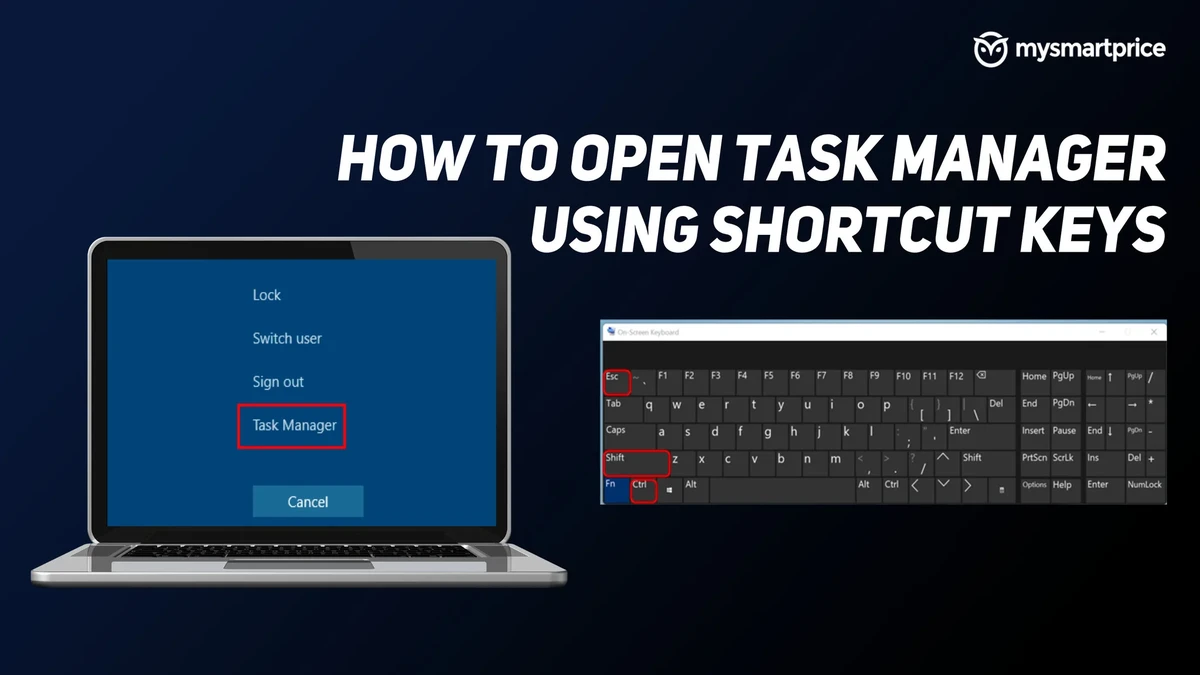
The most widely known Task Manager shortcut is Ctrl + Shift + Esc. This key combination opens Task Manager instantly without any intermediate screens. Other shortcuts also lead to Task Manager through different paths, each useful in specific scenarios.
Why Task Manager Shortcuts Matter
I have found that understanding Task Manager shortcuts is not just about speed. It is about control and reliability. When an application freezes, the mouse might stop responding. When Windows Explorer crashes, the taskbar may disappear. Keyboard shortcuts often remain functional even in these cases.
Task Manager shortcuts matter because they:
- Reduce troubleshooting time
- Work even when the desktop is unresponsive
- Improve workflow efficiency
- Help diagnose performance issues quickly
- Enable advanced system management without extra tools
The Primary Task Manager Shortcut Explained
Ctrl + Shift + Esc
Ctrl + Shift + Esc is the fastest and most direct shortcut to open Task Manager. Pressing these three keys together launches Task Manager immediately.
This shortcut:
- Skips security or option screens
- Works on almost all modern Windows versions
- Is ideal during system slowdowns
- Is preferred by IT professionals and power users
When speed matters, this shortcut is the best choice.
Alternative Task Manager Shortcuts and Methods
While Ctrl + Shift + Esc is the most efficient, Windows provides several other ways to open Task Manager using the keyboard. Each method has its own purpose and context.
Ctrl + Alt + Delete
Ctrl + Alt + Delete opens the Windows Security screen. From there, users can select Task Manager.
This method is useful when:
- The system is partially frozen
- User switching or sign out is needed
- Security related options are required
Although it takes an extra step, it works even in severe system lockups.
Windows Key + X Then U or T
Pressing Windows key + X opens the Quick Link menu. From this menu, pressing T launches Task Manager.
This method:
- Is convenient for keyboard focused navigation
- Provides access to other advanced system tools
- Works well on Windows 10 and Windows 11
Using Run Command
Press Windows key + R to open the Run dialog. Type taskmgr and press Enter.
This approach is useful when:
- Automating tasks
- Teaching beginners system commands
- Running Task Manager from scripts or remote sessions
Command Prompt or PowerShell
Typing taskmgr in Command Prompt or PowerShell also opens Task Manager. This method is popular among system administrators who work extensively in command line environments.
How Task Manager Shortcut Improves Daily Productivity
I see many users waste time restarting their entire computer when a single application stops responding. The Task Manager shortcut eliminates this habit.
With quick access, users can:
- End frozen applications instantly
- Monitor CPU and memory usage in real time
- Identify background apps consuming resources
- Restart Windows Explorer without rebooting
- Manage startup programs efficiently
These actions can save hours over weeks and months of regular computer use.
Task Manager Shortcut During System Freezes
One of the biggest advantages of Task Manager shortcuts appears during system freezes. When the mouse cursor moves slowly or not at all, keyboard shortcuts often still function.
Ctrl + Shift + Esc can:
- Force Task Manager to appear above frozen apps
- Allow termination of unresponsive software
- Prevent data loss by avoiding forced shutdowns
If that shortcut fails, Ctrl + Alt + Delete is usually the last reliable option before restarting the system.
Task Manager Shortcut and Startup Management
Startup programs significantly affect boot time. Many users never review startup apps simply because they do not know how easily Task Manager can be accessed.
Using the Task Manager shortcut:
- Open Task Manager
- Switch to the Startup tab
- Disable unnecessary programs
This simple process improves boot speed and overall system responsiveness.
Task Manager Shortcut for Performance Monitoring
Task Manager is not only for closing programs. It is also a real time performance monitor.
By opening Task Manager using the shortcut, users can:
- Track CPU usage spikes
- Observe memory consumption
- Monitor disk activity
- Check network usage
- Identify overheating related slowdowns indirectly
These insights help users understand what their system is doing behind the scenes.
Task Manager Shortcut and Background Processes
Many performance issues come from background processes rather than visible applications. Task Manager allows users to view and manage these processes easily.
Using the shortcut ensures that:
- Background apps are visible instantly
- Resource hogs are identified quickly
- Suspicious processes can be investigated
- System responsiveness is restored faster
This is especially important on low memory or older systems.
Restarting Windows Explorer Using Task Manager Shortcut
Sometimes the taskbar disappears or the desktop stops refreshing. Instead of rebooting, users can restart Windows Explorer.
Steps:
- Open Task Manager using the shortcut
- Find Windows Explorer in the list
- Select Restart
This technique solves many graphical issues within seconds.
Task Manager Shortcut in Professional Environments
In professional environments, Task Manager shortcuts are essential skills. IT support staff rely on them to diagnose issues quickly. Developers use Task Manager to monitor application behavior. System administrators use it to manage services and users.
Knowing these shortcuts:
- Improves response time during incidents
- Reduces dependency on third party tools
- Enhances technical credibility
- Increases confidence when handling system problems
Task Manager Shortcut on Laptops vs Desktops
The shortcut behavior is identical on laptops and desktops. However, laptop users benefit even more because touchpads can become unresponsive under heavy load.
Keyboard shortcuts remain reliable even when:
- Touchpad drivers crash
- External mice disconnect
- Screen scaling issues occur
This makes Task Manager shortcuts a must learn skill for laptop users.
Common Mistakes When Using Task Manager Shortcut
I often observe users making avoidable mistakes when using Task Manager.
Some common mistakes include:
- Ending critical system processes without understanding their role
- Ignoring the performance tab insights
- Disabling essential startup programs
- Confusing multiple instances of the same process
Learning Task Manager basics alongside the shortcut prevents these issues.
Safety Tips When Ending Tasks
While Task Manager is powerful, it should be used carefully.
Best practices:
- End only applications you recognize
- Avoid system processes unless instructed
- Save work before ending unresponsive apps
- Research unknown processes if unsure
The shortcut gives access quickly, but thoughtful use ensures system stability.
Task Manager Shortcut and Windows Versions
The Task Manager shortcut works across multiple Windows versions including Windows 7, Windows 8, Windows 10, and Windows 11. The interface may change slightly, but the shortcut behavior remains consistent.
This consistency makes it a timeless skill that carries forward with system upgrades.
Customizing Workflow Around Task Manager Shortcut
Advanced users often build habits around keyboard shortcuts. Keeping fingers trained for Ctrl + Shift + Esc creates muscle memory that activates during stress situations.
Over time, this habit:
- Reduces panic during freezes
- Improves multitasking flow
- Makes troubleshooting instinctive
Simple shortcuts often have the greatest long term impact.
Teaching Task Manager Shortcut to Beginners
I believe this shortcut should be one of the first skills taught to new computer users. It builds confidence and reduces fear of system problems.
Teaching approach:
- Demonstrate the shortcut during normal use
- Explain what each tab does
- Practice ending and restarting harmless apps
- Show real life problem solving examples
This approach empowers users rather than overwhelming them.
Task Manager Shortcut for Gamers
Gamers often rely on Task Manager shortcuts when games freeze or fail to close properly.
Benefits include:
- Closing crashed games instantly
- Monitoring GPU and CPU usage
- Managing background apps affecting performance
- Avoiding forced reboots during sessions
The shortcut becomes a lifesaver during competitive or long gaming sessions.
Task Manager Shortcut in Remote Sessions
In remote desktop or virtual machine environments, mouse lag is common. Keyboard shortcuts remain fast and reliable.
Using Task Manager shortcuts remotely:
- Improves control over virtual systems
- Helps manage remote performance issues
- Saves time during administration tasks
This makes the shortcut valuable beyond personal computers.
Troubleshooting When Task Manager Shortcut Does Not Work
In rare cases, shortcuts may not respond due to system corruption or policy restrictions.
Possible solutions:
- Try alternative shortcuts
- Use Run command
- Check keyboard functionality
- Scan system files
- Review group policy settings
These steps usually restore access.
The Long Term Value of Learning Task Manager Shortcut
I have seen that mastering small skills like the Task Manager shortcut produces long term benefits. It reduces dependency on others, improves technical confidence, and makes computing smoother.
Over years of computer use, this single shortcut can save countless hours and prevent unnecessary frustration.
conclusion
I consider the Task Manager shortcut one of the most valuable keyboard combinations in Windows. It provides speed, control, and reliability when users need it most. Whether you are a beginner, professional, gamer, or administrator, understanding and using this shortcut enhances your relationship with your computer.
By making the Task Manager short a daily habit, users unlock a smarter and more efficient way to manage Windows systems.
FAQs
Q1. What Is the Taskmgr Shortcut?
The taskmgr shortcut refers to keyboard combinations that open Task Manager quickly without using the mouse. The most direct and widely used shortcut is Ctrl + Shift + Esc, which opens Task Manager instantly.
Q2. What Is the Fastest Way to Open Task Manager?
The fastest way to open Task Manager is by pressing Ctrl + Shift + Esc. This shortcut launches Task Manager immediately without showing any intermediate screen.
Q3. Does Ctrl + Alt + Delete Open Task Manager?
Ctrl + Alt + Delete does not open Task Manager directly. It opens the Windows Security screen, from where you can select Task Manager. This method is useful when the system is partially frozen.
Q4. What Does Taskmgr Mean in Windows?
Taskmgr is the executable name of Task Manager in Windows. When you type taskmgr in the Run dialog, Command Prompt, or PowerShell, Windows launches Task Manager.
Q5. Can I Open Task Manager Using the Run Command?
Yes, you can open Task Manager by pressing Windows key + R, typing taskmgr, and pressing Enter. This method works on all modern Windows versions.
Q6. Why Is Ctrl + Shift + Esc Better Than Other Shortcuts?
Ctrl + Shift + Esc is better because it opens Task Manager directly without extra steps. It is faster and more reliable, especially during system slowdowns or freezes.
Q7. Does the Taskmgr Shortcut Work When the Screen Is Frozen?
In many cases, yes. Keyboard shortcuts often continue to work even when the mouse or screen becomes unresponsive. If Ctrl + Shift + Esc fails, Ctrl + Alt + Delete usually still works.
Q8. Is the Taskmgr Shortcut the Same in Windows 10 and Windows 11?
Yes, the taskmgr shortcut works the same way in Windows 10 and Windows 11. The Task Manager interface may look different, but the shortcuts remain unchanged.
Q9. Can I Use the Taskmgr Shortcut on a Laptop?
Yes, the taskmgr shortcut works on laptops exactly the same way as on desktop computers. It is especially helpful when the touchpad or mouse stops responding.
Q10. What Should I Do If Task Manager Does Not Open Using Shortcuts?
If Task Manager does not open, try using the Run command with taskmgr. You can also check your keyboard, restart Windows Explorer, or scan for system file issues.