I often notice how many people use a Wi-Fi router every single day without ever touching most of its buttons. One of the most misunderstood features is the WPS button. When I first learned about it, I realized how much confusion surrounds its purpose, safety, and real value. In this article, I take a deep and practical look at the WPS button on a router, explaining what it does, how it works, when it helps, and when it can cause problems. This guide is written for regular home users, small offices, and anyone who wants to truly understand their network hardware instead of guessing.
What the WPS Button on a Router Means
WPS stands for Wi-Fi Protected Setup. The WPS button is a physical or virtual button found on many wireless routers. Its main goal is simple. It allows devices to connect to a Wi-Fi network without typing the Wi-Fi password.
Instead of entering a long and complex password, the user presses the WPS button on the router and then activates WPS on a compatible device. The router automatically shares the network credentials with that device in a secure exchange.
This feature was created to make wireless networking easier, especially for people who find passwords inconvenient or confusing.
Why the WPS Button Was Created
When Wi-Fi became common in homes, security standards improved quickly. Strong encryption like WPA and WPA2 required long passwords. While these passwords improved security, they also created frustration.
Manufacturers introduced WPS to solve three major problems:
- Difficulty typing complex passwords on devices with small keyboards
- Confusion among non-technical users
- Time wasted during initial device setup
WPS was meant to balance convenience and security, though this balance has been debated for years.
Where You Can Find the WPS Button on a Router
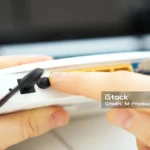
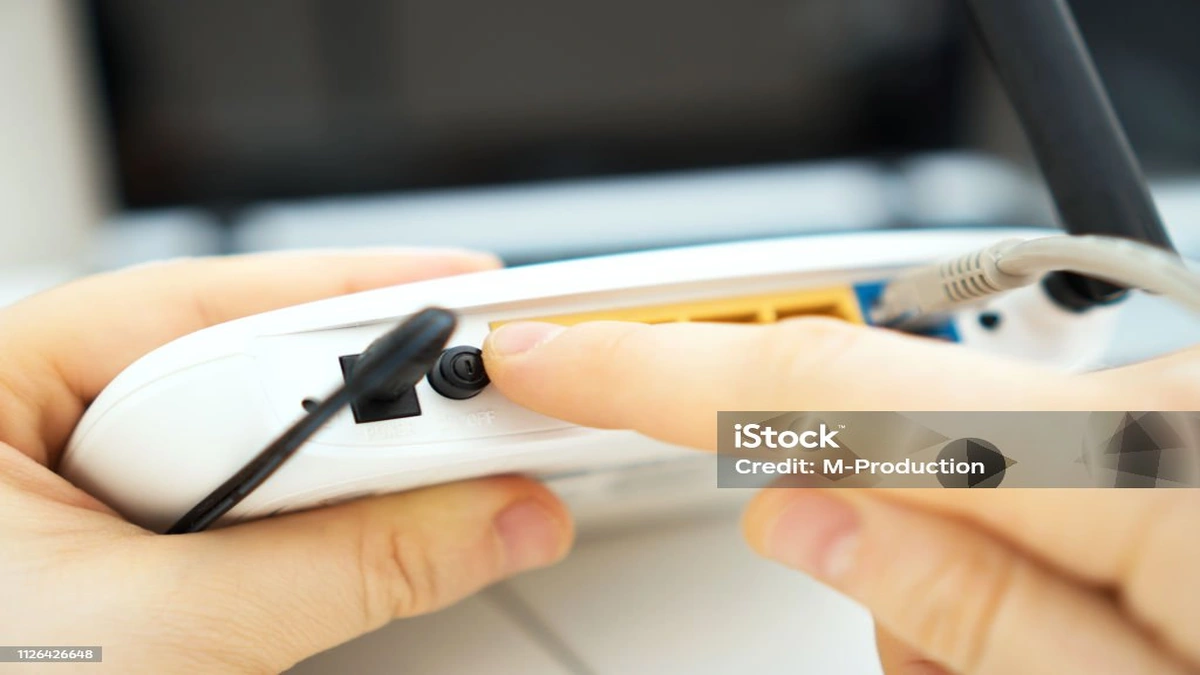
The WPS button is usually located on the back or side of the router. In some models, it appears as a physical button labeled WPS. In others, it may share space with another button like Reset.
Some routers use a software based WPS button inside the router’s web settings or mobile app instead of a physical button.
Common places to look include:
- Back panel near Ethernet ports
- Side edge of compact routers
- Top surface with icons
- Router settings dashboard
If the button is not clearly labeled, the router manual usually identifies it.
How the WPS Button Works Step by Step
Understanding the process helps remove confusion. Here is how WPS works in real usage.
Step One: Activate WPS on the Router
You press the WPS button on the router. This action opens a short time window, usually two minutes, during which the router listens for connection requests.
Step Two: Enable WPS on the Device
On the phone, printer, smart TV, or other device, you select the WPS connection option. Some devices have a WPS button. Others require selecting WPS from a menu.
Step Three: Secure Credential Exchange
The router and device exchange security information automatically. The Wi-Fi password is shared without being displayed.
Step Four: Connection Confirmation
Once paired, the device connects to the network like any other device. After this, WPS automatically turns off until used again.
Types of WPS Connection Methods
Not all WPS connections work the same way. There are several methods defined by the standard.
Push Button Configuration
This is the most common and safest method. You press the WPS button on the router and activate WPS on the device.
PIN Based WPS
The router generates an eight digit PIN that must be entered on the device. Some devices also generate a PIN that you enter into the router settings.
Near Field Communication WPS
Rarely used today, this method relies on tapping devices together. It never became widely adopted.
USB WPS Method
This involved transferring configuration files using a USB drive. It was discontinued due to security concerns.
Devices That Commonly Use the WPS Button
WPS is especially useful for devices without keyboards or screens.
Common examples include:
- Wireless printers
- Smart TVs
- Streaming devices
- Wi-Fi extenders
- IP cameras
- Game consoles
For laptops and phones, manual password entry is usually easier, so WPS is less commonly used.
Advantages of Using the WPS Button
When used correctly, WPS can be genuinely helpful.
Faster Network Setup
Connecting a new device takes seconds instead of minutes.
No Password Typing Errors
Long passwords are easy to mistype. WPS removes this issue entirely.
Better for Non Technical Users
People unfamiliar with networking can connect devices confidently.
Useful for Guest Devices
Temporary connections become easier without revealing the actual password.
Limitations of the WPS Button
Despite its convenience, WPS is not perfect.
Not Supported on All Devices
Many modern phones and laptops no longer support WPS.
Short Activation Window
If the connection attempt fails within the time window, the process must be repeated.
Reduced Control
You do not manually approve individual credentials.
Is the WPS Button Safe to Use
This question matters more than anything else. The answer depends on how WPS is implemented and used.
Security Concerns with PIN Based WPS
PIN based WPS has known vulnerabilities. Attackers can attempt PIN combinations through brute force attacks. Once the PIN is cracked, the Wi-Fi password becomes accessible.
Push Button WPS Is Safer
Push button WPS requires physical access to the router. This makes remote attacks far less likely.
Modern Router Improvements
Newer routers often disable insecure WPS methods or limit repeated attempts.
Physical Access Matters
If someone can physically reach your router, they may press the WPS button themselves.
Should You Disable the WPS Button
This depends on your environment.
When Disabling WPS Makes Sense
- Public or shared spaces
- Offices with sensitive data
- Routers using older firmware
- Users who never use WPS
When Keeping WPS Enabled Is Acceptable
- Private homes
- Trusted users only
- Push button WPS only
- Updated router firmware
Many security experts recommend disabling PIN based WPS while keeping push button WPS if available.
How to Enable or Disable the WPS Button
Most routers allow WPS control through their settings.
Access Router Settings
Open a browser and enter the router’s IP address. Log in using admin credentials.
Navigate to Wireless Settings
Look for WPS or Advanced Wireless options.
Choose WPS Mode
Enable or disable WPS entirely or disable only PIN based WPS.
Save and Reboot
Apply changes and restart the router if required.
WPS Button vs Wi-Fi Password Method
Both methods have their place.
| Feature | WPS Button | Password Entry |
|---|---|---|
| Speed | Very fast | Moderate |
| Security Control | Limited | High |
| Compatibility | Limited | Universal |
| Ease of Use | High | Medium |
For most modern users, passwords remain the most secure and flexible method.
Common Problems with the WPS Button
Even when used correctly, WPS can fail.
Device Not Connecting
The device may not support WPS or may require a different method.
WPS Light Keeps Blinking
This usually means the connection window is still open.
Connection Times Out
Retry the process or move closer to the router.
WPS Option Missing on Device
Many devices have removed WPS entirely due to security concerns.
WPS Button on Dual Band Routers
Dual band routers broadcast both 2.4 GHz and 5 GHz networks. WPS usually connects devices to the band chosen by the router automatically.
Some routers allow selecting the preferred band during WPS setup. Others assign the band based on signal strength and device capability.
WPS Button and Mesh Wi-Fi Systems
Many modern mesh systems do not include a physical WPS button. Instead, they rely on mobile apps for device pairing.
Some mesh nodes still support WPS for adding extenders or printers, but app based pairing is becoming the standard.
WPS Button for Wi-Fi Extenders
WPS is extremely useful for range extenders.
You press WPS on the router and then on the extender. The extender automatically copies the network settings.
This is one of the safest and most practical uses of WPS.
How Long Does WPS Stay Active
Most routers keep WPS active for one to two minutes. After that, it automatically disables itself.
Some routers show a blinking LED during this period. Once the light stops blinking, WPS is inactive.
WPS Button and Guest Networks
WPS usually connects devices to the main network, not the guest network.
If you want to isolate guest devices, manual password entry on a guest network is the better option.
Does Pressing WPS Change Your Wi-Fi Password
No. WPS does not change the existing Wi-Fi password. It only shares it securely with the connecting device.
WPS Button on New Routers in 2026
Router manufacturers have become more cautious. Many newer models either disable WPS by default or limit it to push button mode only.
Security awareness has grown, and users now prefer stronger encryption and app based setup methods.
Alternatives to the WPS Button
If WPS feels risky or unsupported, there are better alternatives.
QR Code Wi-Fi Sharing
Many routers and phones support QR codes for secure sharing.
Mobile App Setup
Router apps allow encrypted device pairing.
Manual Password Entry
Still the most reliable and widely supported method.
Best Practices for Using the WPS Button Safely
- Use push button WPS only
- Disable PIN based WPS
- Keep router firmware updated
- Avoid using WPS in public spaces
- Monitor connected devices regularly
Following these steps minimizes risks significantly.
Future of the WPS Button
WPS is slowly fading from mainstream use. Simpler alternatives like QR codes and app driven setup provide better security and flexibility.
However, WPS will likely remain available for legacy devices and basic setups for years to come.
conclusion
I see the WPS button as a tool that must be understood before being trusted. It is neither useless nor universally dangerous. When used carefully and with modern routers, it can save time and reduce frustration. At the same time, blindly relying on it without understanding security implications can create risks.
Knowing when to use the WPS button and when to avoid it gives you full control over your Wi-Fi network. That understanding turns a small button on your router into a feature you actually master rather than ignore.
Frequently Asked Questions
1. What does the WPS button on a router do?
The WPS button allows devices to connect to a Wi-Fi network without entering the password manually.
2. Is it safe to press the WPS button?
Push button WPS is generally safe in private environments, especially on updated routers.
3. Should I turn off WPS on my router?
Disabling WPS is recommended if you never use it or if your router uses insecure PIN based WPS.
4. Why does my phone not show WPS?
Many modern phones have removed WPS support due to security concerns.
5. Can hackers use the WPS button remotely?
Remote attacks mainly target PIN based WPS. Push button WPS requires physical access to the router.